05. Aliasing
Aliasing
Aliasing is the term used to describe a signal which is under sampled. For 3D graphics, the word is used to denote the distortion or artifacts resulting from the rendering process.
Displays are ultimately made up of pixels, which are squares of colored light. When an image is rendered, invariably you’ll have lines which take the appearance of jagged staircases.
There is a performance cost to using MSAA, and the higher the MSAA fidelity (x2, x4, and x8 are supported by Unity), the higher the cost. This cost to real time processing and video memory is entirely on the GPU, however.
For desktop VR, it’s recommended to use MSAA x8 since PC graphics cards are quite powerful and this will provide the smoothest edges. If you desperately need the performance in other areas, however, you can use MSAA x4 for fairly decent results.
In VR, this problem is aggravated, since lenses zoom in on the pixels. Aliasing can be recognized as a shimmering, flickering, or judder when you move your head around. The effect is particularly problematic because in addition to being distracting, presence breaking and visually unpleasing, it can cause motion sickness and eye strain.
If you are using Forward Rendering, however, aliasing can be greatly reduced with the use of Multisample Anti-Aliasing (MSAA). During rendering, MSAA will essentially take the geometry of the scene (and pixels that are rendered) and smooth the edges by converting them to a gradient. Instead of a single-color jagged line, the edge becomes a gradient of multiple shades, somewhat like a blur effect in Photoshop. The result is that the world feels rock solid around you, rather than a swimming soup of artifacts and flickering.

Mipmaps
Mip Maps allow you to have several different resolutions for each texture. This can save performance when rendering far-away objects by using a lower-resolution texture, and most importantly can reduce aliasing. When you have mipmaps enabled, the renderer will use the texture resolution that best fits the pixels it will be drawn on. Put another way, a smaller resolution will be used for textures that are further away, giving a more natural representation of how colors would blend. It’s like pre-computed MSAA for textures!

For more information on Mipmapping, check out this text article from the University of North Carolina at Chapel Hill.
How to Minimize Aliasing in Unity
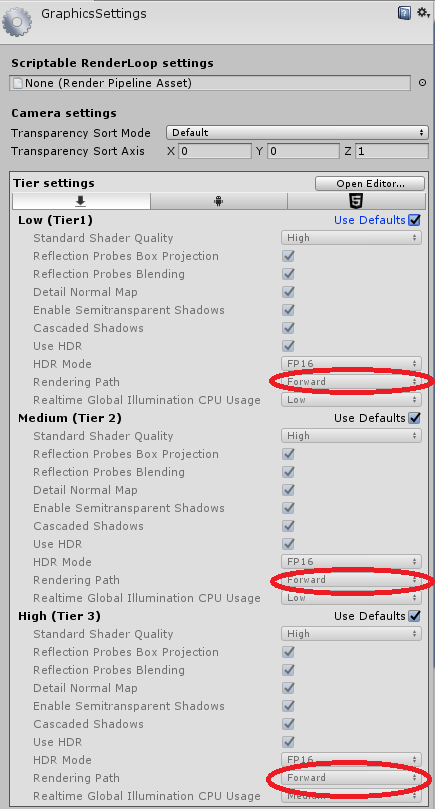
- First make sure you’re using Forward Rendering so you can use MSAA in Edit > Project Settings > Graphics > Tier Settings
- Turn on MSAA x8 by going to Edit > Project Settings > Quality > Anti Aliasing
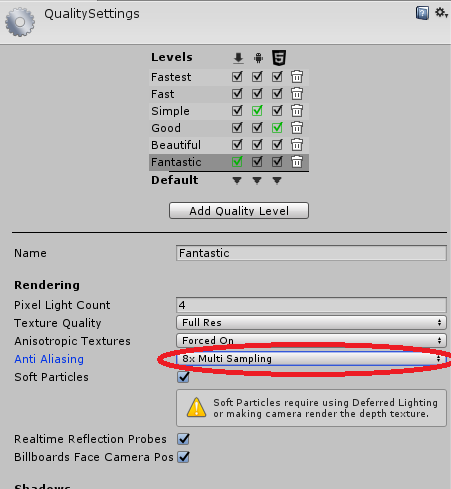
Tip: Click on one of the quality settings at the top to see the settings for each of tiers. For high immersion VR experiences, the top 3 graphics settings should be set to at least 4x MSAA. The higher the graphics settings tier, the higher the MSAA should be.
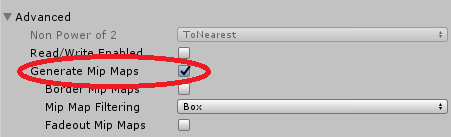
- For all your textures, use the Default settings and make sure Mipmap is enabled:
Project Preview:
